When loading the PyXLL add-in or starting Excel if you get an error saying "No config file found" it is because the PyXLL add-in can't find its config file, pyxll.cfg.
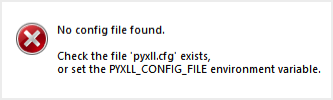
The PyXLL add-in expects its config file pyxll.cfg to be located in the same folder as the pyxll.xll file. This error is telling you that the pyxll.cfg file wasn't found in the same folder as the pyxll.xll file that was loaded.
If you want to load the pyxll.cfg file from a different location, you can set the PYXLL_CONFIG_FILE environment variable. If you have set that environment variable then you should check it is set to the correct file.
The following are possible causes for this error.
Cause 1: Excel has copied the add-in to your local add-ins folder
When you install PyXLL, Excel may ask you if you want to copy the add-in to your local Add-ins folder. You should always select "No" if it asks you this. If you have selected "Yes" the pyxll.xll file will have been copied to your local add-ins folder, but the pyxll.cfg file will not have been and so that can be why you see the "No config file found" error.
Solution: Check where pyxll.xll has been loaded from
Cause 2: Not all files have been extracted from the PyXLL zip file
PyXLL is downloaded as a zip file. This needs to be extracted before you can use PyXLL. You can do this by right clicking on the zip file and selecting "Extract All". Follow the instructions to extract the zip file to a folder on your PC.
Once extracted you will see the file pyxll.cfg. If this is your first time using PyXLL you should read the Installation Instructions.
If you have not extracted all the files in the zip file before attempting to load the pyxll.xll add-in then the pyxll.cfg file will not be found. If you open the zip file to view the contents without extracting all the files and load the pyxll.xll add-in from there, Windows will make a temporary copy and load that. The temporary copy will not have the pyxll.cfg file alongside it, and so you will see this error.
Solution: Check where pyxll.xll has been loaded from
Cause 3: The pyxll.cfg file is named incorrectly
When you look at the list of files in Windows Explorer, depending on your settings the file extensions may be hidden. If you have created the pyxll.cfg file yourself, it is possible that you have actually created a file called "pyxll.cfg.txt" instead of "pyxll.cfg" and don't realise because Windows Explorer is hiding the ".txt" file extension.
Check the file extension of your pyxll.cfg file by clicking the “View” tab on the ribbon in Windows Explorer. Activate the “File name extensions” box in the Show/hide section to toggle file extensions on or off. File Explorer will remember this setting until you disable it in the future.
Solution: Rename the pyxll.cfg.txt file to pyxll.cfg
Cause 4: Environment variable PYXLL_CONFIG_FILE set
When PyXLL looks for its pyxll.cfg file, if the environment variable PYXLL_CONFIG_FILE is set then it will try and load the value of that variable as a config file instead of looking in the same folder as itself. If you have this variable set to a path that doesn't exist, this will cause the "No config file found" error.
To check if this environment variable is set, open a command prompt by typing "cmd" into the start menu and then type the following, followed by enter:
echo %PYXLL_CONFIG_FILE%
If this prints anything other than "%PYXLL_CONFIG_FILE%" then that environment variable is set, and you will need to check it is set to a valid path and change it if it isn't.
Solution: Fix or remove the PYXLL_CONFIG_FILE environment variable
Solution: Check where pyxll.xll has been loaded from
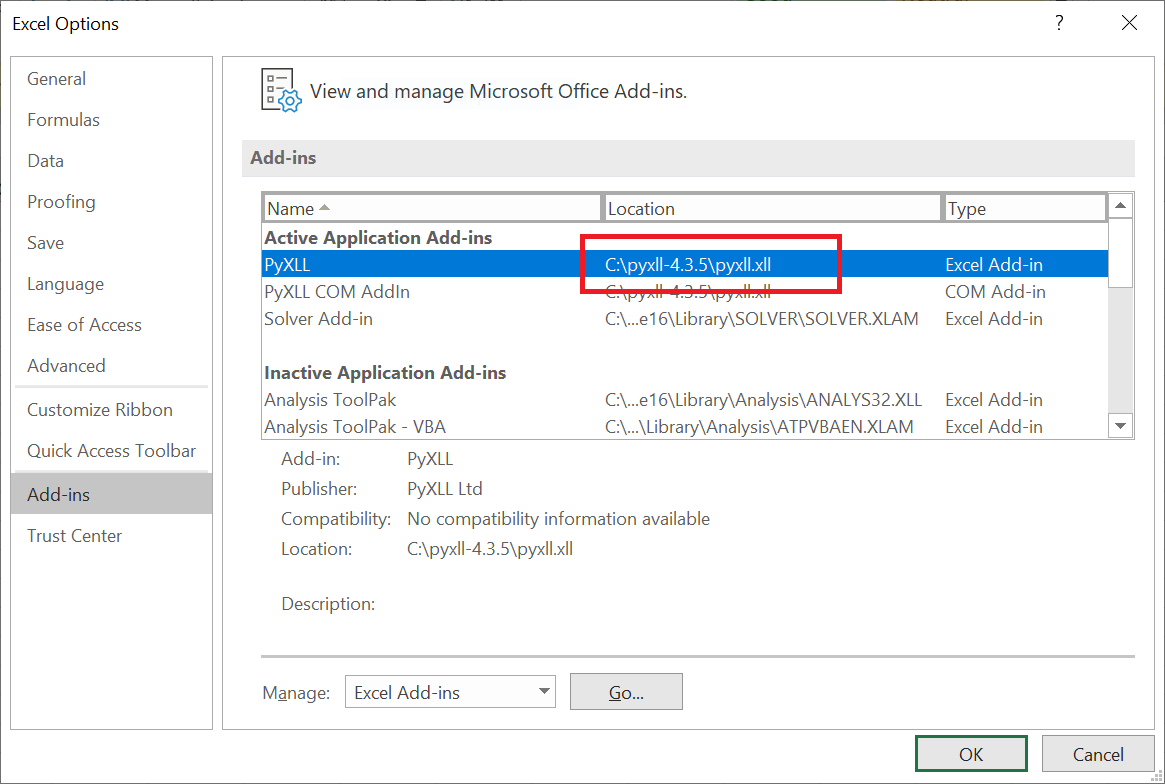
In Excel go to Add-Ins -> PyXLL -> About. This will show you the full path of where the PyXLL add-in has been loaded from. For older versions of PyXLL that don't show this information in the about screen, go to Options -> Add-Ins and you will be able to see the path of the add-in there.
If the path is not the same as where you have un-zipped PyXLL to, this is likely to be the cause of the problem. To fix it, in Excel go to Options -> Add-Ins. Here you will see a list of the add-ins that are loaded. Unselect the PyXLL add-in, and completely close Excel. Check there are no other open Excel sessions as Excel has the strange behaviour that it remembers the add-ins from the last open Excel instance. If you have another Excel instance running with PyXLL loaded, and you close that after removing PyXLL from another instance, Excel will still remember it which can be very confusing! If in doubt, close all Excel sessions, open one new one, remove the add-in, and then close that session.
Now you have uninstalled PyXLL, you can install the one from the correct location by starting a new Excel session and adding it via Options -> Add-Ins -> Manage Excel Add-Ins. Remember that if Excel asks you if you want to copy the add-in to your local add-ins folder you should select "No".